Pre-fill Widget Form Fields with URL Parameters
Learn how to auto-fill name, email, and other fields in your DriveWidget upload widget using URL parameters. Perfect for Shopify, WordPress, and custom integrations.
Why Pre-fill Form Fields?
When you embed the DriveWidget upload widget on your site, you often already know who the user is — they're logged into your Shopify store, WordPress site, or web app. Making them re-type their name and email is bad UX.
With URL parameter pre-filling, you pass known data into the widget URL, and form fields are automatically populated.
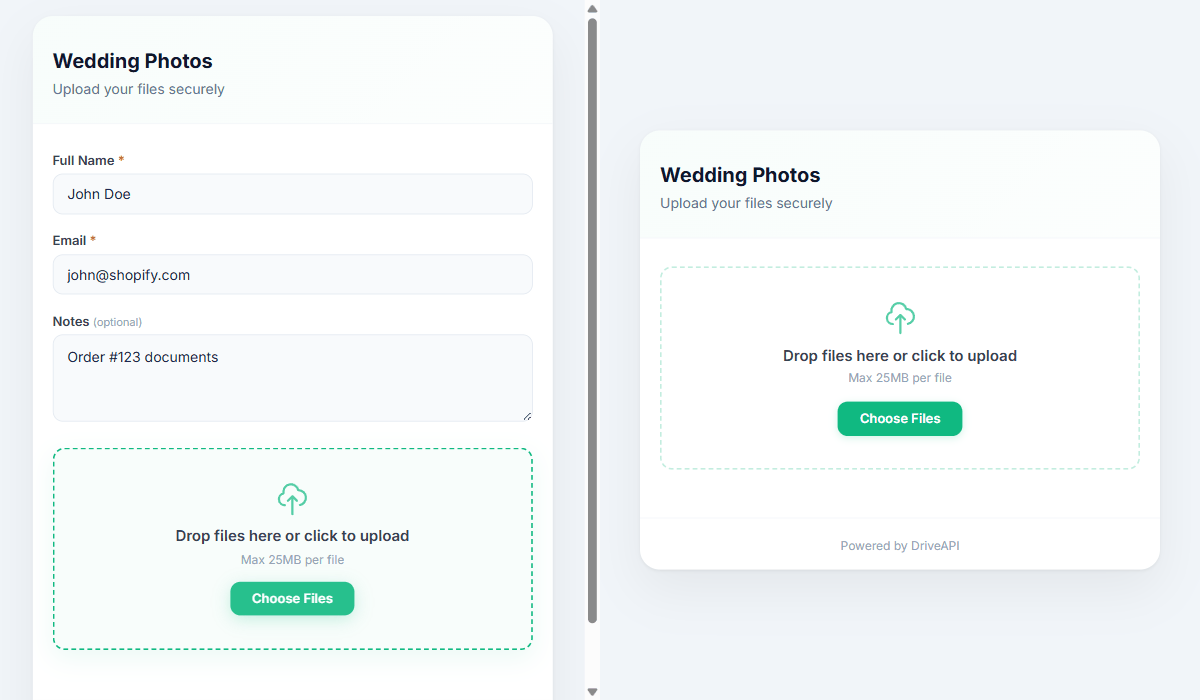
How It Works
Add query parameters to your widget embed or standalone URL. The parameter name must match the form field name in your widget config.
Basic Example
<!-- Without pre-fill -->
<iframe src="https://api.drivewidget.com/widget/YOUR_ID/embed"></iframe>

<!-- With pre-fill -->
<iframe src="https://api.drivewidget.com/widget/YOUR_ID/embed?full_name=John+Doe&email=john@example.com"></iframe>
Hide Pre-filled Fields
If you don't want the user to see (or edit) the pre-filled fields, add hide_fields=true:
<iframe src="https://api.drivewidget.com/widget/YOUR_ID/embed?full_name=John&email=john@example.com&hide_fields=true"></iframe>
The fields are still submitted with the upload, but the user only sees the file drop zone.
Platform-Specific Examples
Shopify (Liquid)
<iframe
  src="https://api.drivewidget.com/widget/YOUR_ID/embed?full_name={{ customer.name | url_encode }}&email={{ customer.email | url_encode }}&hide_fields=true"
  width="100%" height="300" frameborder="0">
</iframe>
WordPress (PHP)
<?php if (is_user_logged_in()) {
  $user = wp_get_current_user();
  $name = urlencode($user->display_name);
  $email = urlencode($user->user_email);
  echo '<iframe src="https://api.drivewidget.com/widget/YOUR_ID/embed?full_name='.$name.'&email='.$email.'&hide_fields=true" width="100%" height="300" frameborder="0"></iframe>';
} ?>
React / Next.js
function UploadWidget({ user }) {
  const params = new URLSearchParams({
    full_name: user.name,
    email: user.email,
    hide_fields: "true",
  });
  return (
    <iframe
      src={"https://api.drivewidget.com/widget/YOUR_ID/embed?" + params}
      width="100%" height="300" frameBorder="0"
    />
  );
}
Standalone Page (URL Sharing)
Works with standalone upload pages too:
https://api.drivewidget.com/u/wedding?full_name=John+Doe&email=john@example.com
Supported Parameters
| Parameter | Description |
|---|---|
full_name | Pre-fill the Full Name field |
email | Pre-fill the Email field |
phone | Pre-fill the Phone field |
notes | Pre-fill the Notes textarea |
{any_field_name} | Pre-fill any custom form field by its name |
hide_fields | Set to true to hide all form fields (values still submitted) |
key | API key for private widgets |
Use Cases
- E-commerce: Auto-fill customer name/email from their account
- HR portals: Pre-fill candidate info from your ATS
- Client portals: Embed with client name pre-filled
- Internal tools: Pass employee ID/department automatically
- Event pages: Pre-fill attendee info from registration
File Naming with Pre-filled Data
Pre-filled values work with file naming patterns too. If your widget uses {full_name}_{original}, a pre-filled name of "John Doe" will produce John Doe_photo.jpg.
Try It
- Create a widget with form fields (Name, Email)
- Open the embed URL with
?full_name=Test&email=test@test.com - See fields pre-populated
- Add
&hide_fields=trueto hide them
Ready to collect files?
Start using DriveWidget for free. No credit card required.